
How to Set a Video as Your Wallpaper on Mac (Free)
Quick Answer
Can you set a video as your wallpaper on a Mac? Not from System Settings — macOS only offers Apple's own curated Aerial flyovers and dynamic landscapes. A wallpaper utility can play your own video files on the desktop instead. Moonleaf is a free, open-source app that plays MP4 and MOV videos (and animated GIFs) as your desktop wallpaper, supporting independent assignments on each monitor and virtual Space.
Is there a free live wallpaper app for Mac that works on Intel? Moonleaf is free and open source, with no subscription. The v4.1.1 release is a Universal binary (Intel and Apple Silicon). It requires macOS 12 or later; we tested it on macOS 26 Tahoe.
Disclosure: Moonleaf is our open-source application. This guide outlines how to use it alongside honest comparisons with commercial and system-level alternatives.What macOS Can Do on Its Own
System Settings includes Apple's own Aerial and dynamic wallpapers. As documented in Apple's desktop picture guide, that picker does not let you choose an arbitrary MP4 or MOV from disk.
You cannot click an "Add Video" button in System Settings to pick a personal clip. A wallpaper app can play your own file on the desktop instead.
To run your own MP4 or MOV clips as live desktop backgrounds, you need an application designed to render hardware-accelerated video frames directly onto the desktop layer.
Set a Video as Wallpaper with Moonleaf (Free)
Moonleaf is a native macOS application engineered in pure Swift and AppKit. It uses Apple's native AVFoundation framework for hardware-accelerated video decoding with minimal energy consumption.
1. Install Moonleaf
You can install Moonleaf quickly using Homebrew or by grabbing the pre-compiled DMG package:
brew install shiquda/moonleaf/moonleaf
Alternatively, download moonleaf.dmg directly from the GitHub Releases page, mount the disk image, and drag moonleaf.app into your /Applications folder.
Security note: All official Moonleaf releases are signed with an Apple Developer ID and notarized by Apple. Gatekeeper verifies the cryptographic ticket automatically upon first launch.
2. Add Your MP4 or MOV Video
Launch Moonleaf. It sits conveniently in your menu bar. Open the manager window by clicking the menu icon and selecting Open Manager.
To add video files:
- Click the blue + add wallpaper button in the top toolbar and choose file.
- Alternatively, simply drag and drop any
.mp4or.movfile from Finder into the Moonleaf window.
Moonleaf automatically indexes the video, parses its dimensions and file size, and generates a preview thumbnail.
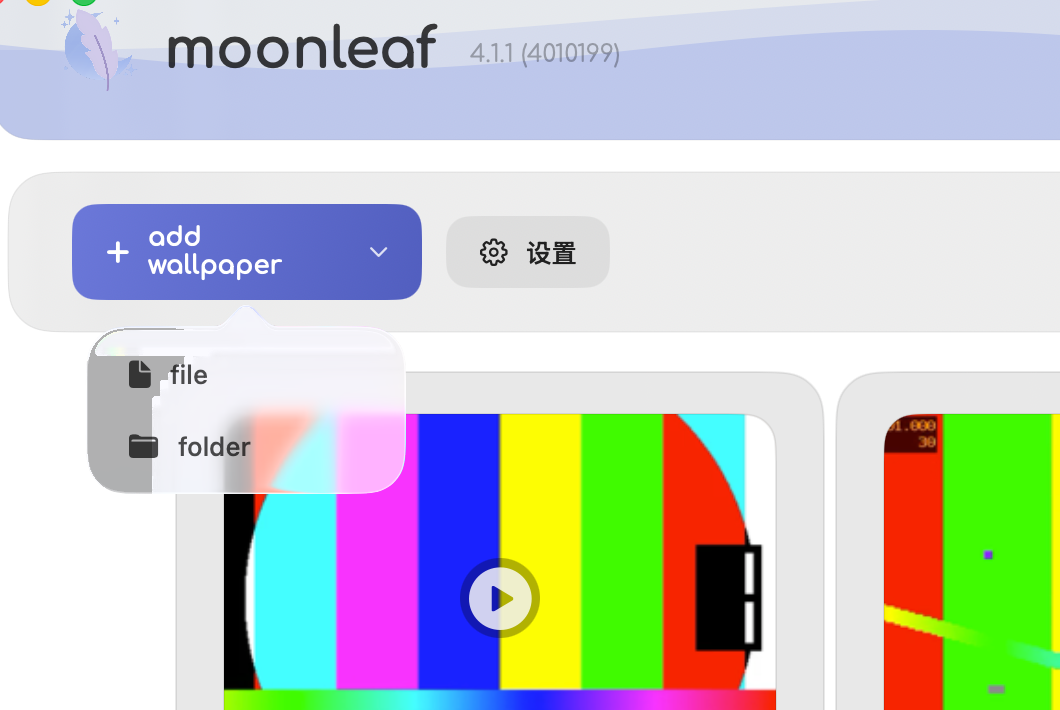
3. Choose a Display and Set Wallpaper
Click on any video card to launch the Quick Preview overlay. The player loops your video in full resolution, displays the playback duration, scrubber bar, and provides a desktop clock preview.
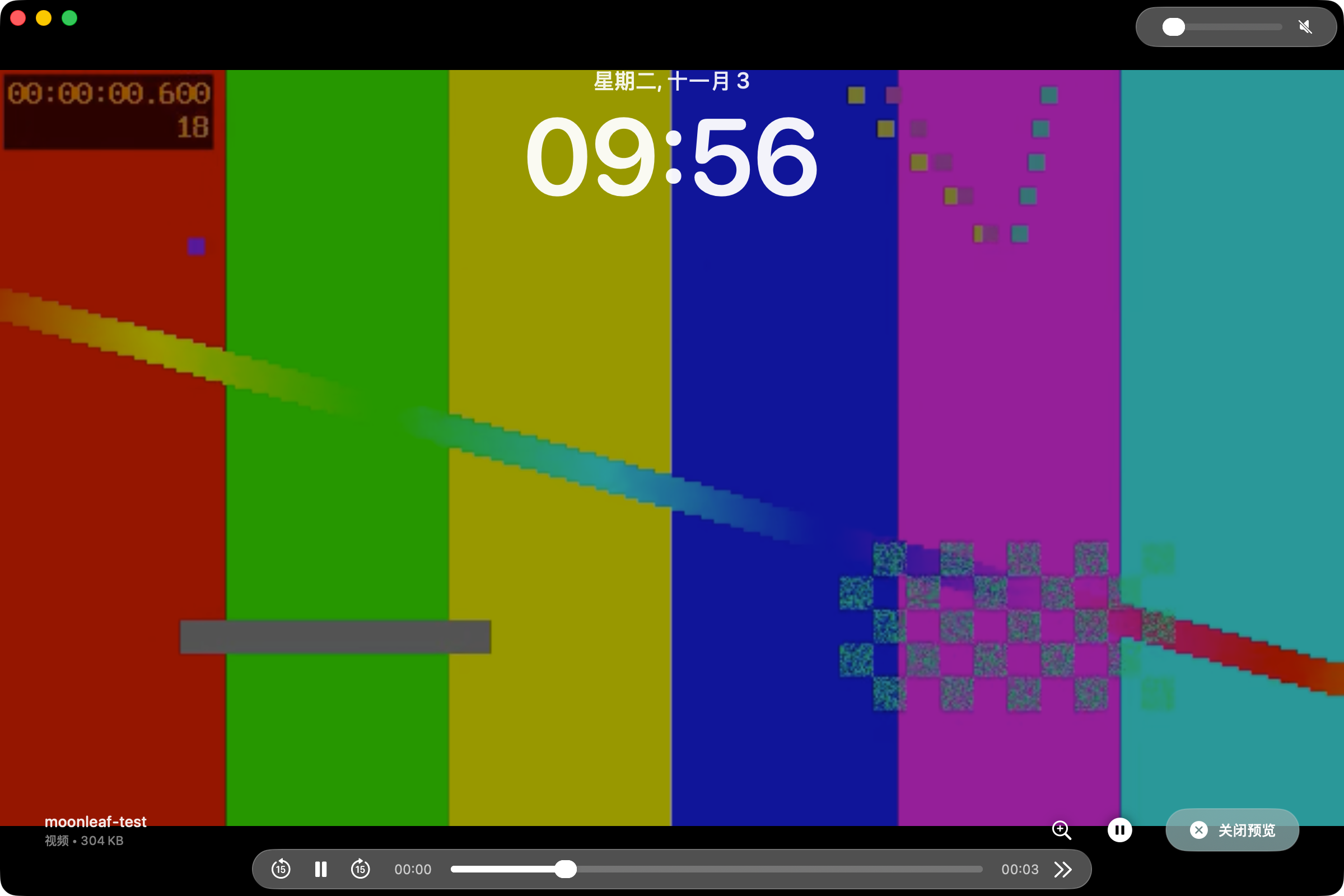
To apply the video to your desktop:
- Hover over the video card in the manager grid.
- Click the magic wand icon (Set Wallpaper).
- If multiple displays are attached, select All or choose an individual display number (1 or 2).
- Your video immediately begins playing seamlessly on the desktop.
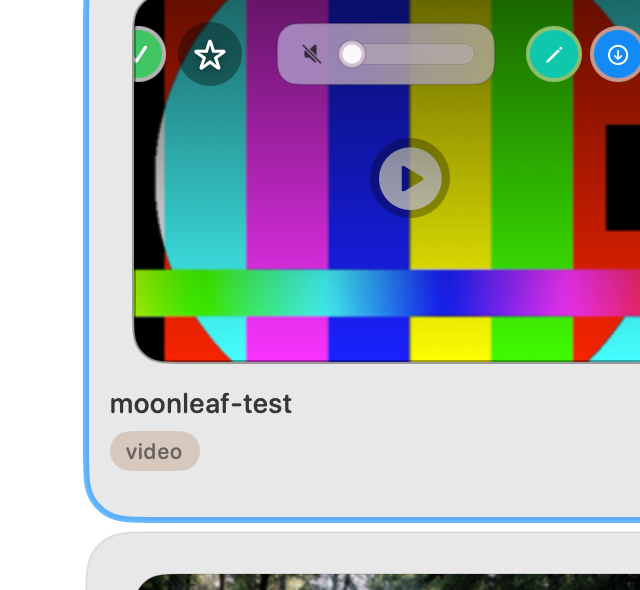
4. Shuffle, Adjust Volume, and Unset from the Menu Bar
With Moonleaf running, you can manage playback without reopening the main window:
- Volume Slider: Adjust video audio levels directly from the menu bar or card slider.
- Shuffle Now: Instantly rotate to another video or picture in your library.
- Automatically start wallpaper on login: Keep your video wallpaper active across restarts.
- Unset Live Wallpaper: Immediately pause and clear the video, restoring your default macOS picture.
Where to Find High-Quality Video Wallpapers
A looping clip at a clean resolution is easier to live with. Places to look:
- Your Own Video Clips: Drone footage, landscape recordings shot on your iPhone, or rendered 3D motion graphics in 1080p or 4K.
- In-App Pexels Integration: Moonleaf includes integrated browsing for Pexels. By providing a free personal Pexels API key, you can search and download thousands of curated stock videos directly inside Moonleaf.
- In-App Wallhaven Integration: For still images to mix with your videos, Moonleaf connects to Wallhaven out of the box with no API key required.
Licensing reminder: Always verify creative commons or commercial reuse rights when downloading footage published by digital creators.
A Different Video on Every Monitor or Desktop
Multi-display workflows are first-class in Moonleaf:
Multi-Monitor Independence
When you connect external monitors, Moonleaf's wallpaper cards display an interactive monitor selector. You can assign an ultra-wide panoramic loop to your external display while keeping a subtle ambient animation on your MacBook screen.
macOS Virtual Desktops (Spaces)
Moonleaf's video playback daemon (glasswp) positions its rendering layer at desktopWindow + 1 with the .canJoinAllSpaces collection behavior. This ensures your video continues playing smoothly without stuttering or reloading as you switch between virtual desktops.
GIFs Work Too — No Converting Required
If you have animated GIF loops in your collection, you do not need to convert them to MP4 files. Moonleaf plays raw .gif files natively using Core Animation.
Read our step-by-step tutorial: How to Set a GIF as Wallpaper on Mac (Free, No Converting) →
Battery, CPU, and Performance
Moonleaf plays video with AVFoundation. In our test on an M1 Pro running macOS 26.7.1, CPU stayed under 1% while playing a 1080p MP4. That is one machine and one file. We did not measure battery life on other Macs.
• Codec: H.264 or HEVC (H.265) MP4 and MOV files are the formats this build imports.
• Resolution: A 1080p loop is a practical size. We did not measure 4K power use.
• Audio: If the file has audio, use the menu bar volume slider or drag it to zero.
Other Ways to Get a Live Wallpaper on Mac (Trade-Offs)
Prices and system requirements below are copied from each project's own page, as of Nov 2026. Check their site before you rely on them. A cell is — when that page did not state the fact.
| Solution | Price | What their page says it plays | macOS, as stated by them | Source |
|---|---|---|---|---|
| Moonleaf | Free (MIT) | Your own MP4, MOV, GIF, PNG, and JPG files on the desktop. Not Wallpaper Engine scenes. It does not change the lock screen. | Requires macOS 12 or later. Tested here on macOS 26 Tahoe. Universal binary. | This site |
| Phosphene | Free. Their README lists a Homebrew cask. | Personal videos, and Wallpaper Engine workshop items turned into video. Their README says macOS plays them on the desktop and lock screen. | macOS 26 or later; Apple silicon or Intel. | README, as of Nov 2026 |
| Backdrop | Free to try with up to 3 watermarked wallpapers. Then $1.99/month, $14.99/year, or $29.99 lifetime (US prices on their store). | Video backdrops, plus custom images and videos. GIF file support: — | macOS 15 Sequoia or later, per their product FAQ. | Product page and store, as of Nov 2026. Their product page says Lock Screen video is supported. |
| MacWall | Free 24-hour trial, then $12.99 once for up to 3 Macs. | A live video catalog. Own videos need Pro. | macOS 15 or later, Apple silicon or Intel. Live Lock Screen and Screen Saver need macOS 26 or later. | Download page, as of Nov 2026 |
| Vivid Walls | Free download, 3-day trial, then $9.99 once. | Wallpaper Engine scene files, plus video, web, GIF, and images. | macOS 14.0 or later, Apple Silicon. | Their site, as of Nov 2026. It lists a Lock Screen feature. |
| Muro | Free | Looping video wallpapers. | macOS 14 or later. Universal binary. Lock screen and screen saver wallpapers need macOS 26 or later. | README, as of Nov 2026 |
| Unsupported system-file change | — | — | — | Not recommended. This guide does not document it. |
moonleaf is a free, open-source option for playing your own files on the desktop. It requires macOS 12 or later; we tested it on macOS 26 Tahoe. It does not change the lock screen.
Troubleshooting Common Video Wallpaper Issues
1. Video fails to import or play
Ensure your video is encoded in standard MP4 or MOV formats using H.264 or HEVC codecs. Container formats like WebM, MKV, or AVI are not supported by macOS AVFoundation and will not appear in the library.
2. Audio is playing unexpectedly
If your video file contains an audio track, Moonleaf enables volume controls. Click the Moonleaf menu bar icon and adjust the volume slider, or drag it all the way to the left to mute.
3. Security prompt on first launch
Official releases are code-signed and notarized by Apple. If your Mac enforces custom corporate policies, right-click moonleaf.app and select Open, or run:
xattr -dr com.apple.quarantine /Applications/moonleaf.app4. Wallpaper does not restart after logging in
Ensure you have enabled Automatically start wallpaper on login in the Moonleaf status bar menu.
Frequently Asked Questions
Can you set your own video as wallpaper in macOS System Settings?
No. macOS System Settings only provides Apple's built-in Aerial wallpapers. Third-party apps like Moonleaf are required to select personal video files.
Is Moonleaf really free with no watermark?
Yes. Moonleaf is licensed under the open-source MIT License. There are no subscriptions, ads, telemetry, or watermarks added to your desktop.
Which video formats does Moonleaf import?
This build imports MP4 and MOV files, including H.264 and HEVC. Animated GIFs are also supported without conversion.
Does Moonleaf work on Intel Macs?
The v4.1.1 release is a Universal binary (Intel and Apple Silicon). It requires macOS 12 or later. We tested it on macOS 26 Tahoe.
Can I play a different video on each monitor?
Yes. Moonleaf includes a display selector on each card so you can customize wallpapers per screen independently.
Does playing a video wallpaper drain battery?
In our test on an M1 Pro running macOS 26.7.1, CPU stayed under 1% while playing a 1080p MP4. That is one machine and one file, not a battery claim for every Mac.
Do video wallpapers play audio?
Yes, if the video has an audio track. You can adjust the playback volume or mute it completely using the menu bar slider.
Can Moonleaf run Wallpaper Engine scenes?
No. Moonleaf plays standard video and GIF files. It does not run interactive Windows Wallpaper Engine .pkg scenes.
Does the video wallpaper appear on the lock screen?
No. moonleaf animates the desktop only; it doesn't change the lock screen.