
How to Set a GIF as Your Wallpaper on Mac (No Converting)
Quick Answer
Can you set a GIF as wallpaper on a Mac? Not with System Settings alone — macOS treats a GIF wallpaper as a still image and shows only its first frame. To make it move, you need an app that plays the animation on the desktop. Moonleaf is a free, open-source wallpaper manager that plays animated GIFs directly, so you don't have to convert them to MP4 first.
Does it work on older or Intel Macs? The v4.1.1 release is a Universal binary (Intel and Apple Silicon). It requires macOS 12 or later; we tested it on macOS 26 Tahoe.
Disclosure: Moonleaf is our open-source app. We built it to offer a free, honest wallpaper manager without subscriptions or paywalls.Why macOS Shows a GIF Wallpaper as a Still Image
If you have ever dragged an animated GIF into System Settings → Wallpaper, you already know the frustration: the graphic appears on your screen, but it remains completely frozen.
According to Apple's official wallpaper documentation, macOS is designed to render desktop pictures as static bitmaps. The operating system's background daemon, WallpaperAgent, reads the file, decodes only frame index 0, and paints that single snapshot onto the desktop context.
The remaining frames are not played. System Settings can show Apple's own Aerial wallpapers, but it does not play a GIF file you choose.
What You Can Do with macOS Alone
Without installing third-party utilities, your built-in options are limited:
- Export a still frame: Open the GIF in Preview, select your favorite frame, and export it as a static PNG.
- Use Apple's Aerials: Choose one of Apple's pre-packaged dynamic wallpapers or slow-motion aerial videos.
Neither method will animate your own GIF. To bring an actual looping GIF to life on your desktop, you need a lightweight helper application that draws the frames directly onto the desktop layer.
Set a GIF as Wallpaper with Moonleaf (Free)
Moonleaf is a native, MIT-licensed wallpaper manager for macOS. It decodes and plays .gif files directly without converting them to video first.
1. Install Moonleaf
Install Moonleaf via Homebrew or direct download:
brew install shiquda/moonleaf/moonleaf
You can also download moonleaf.dmg from GitHub Releases. Official binaries are code-signed with an Apple Developer ID and notarized by Apple, allowing Gatekeeper to verify them cleanly on first launch.
2. Add Your GIF
Open Moonleaf from your Applications folder or menu bar. To add your animation:
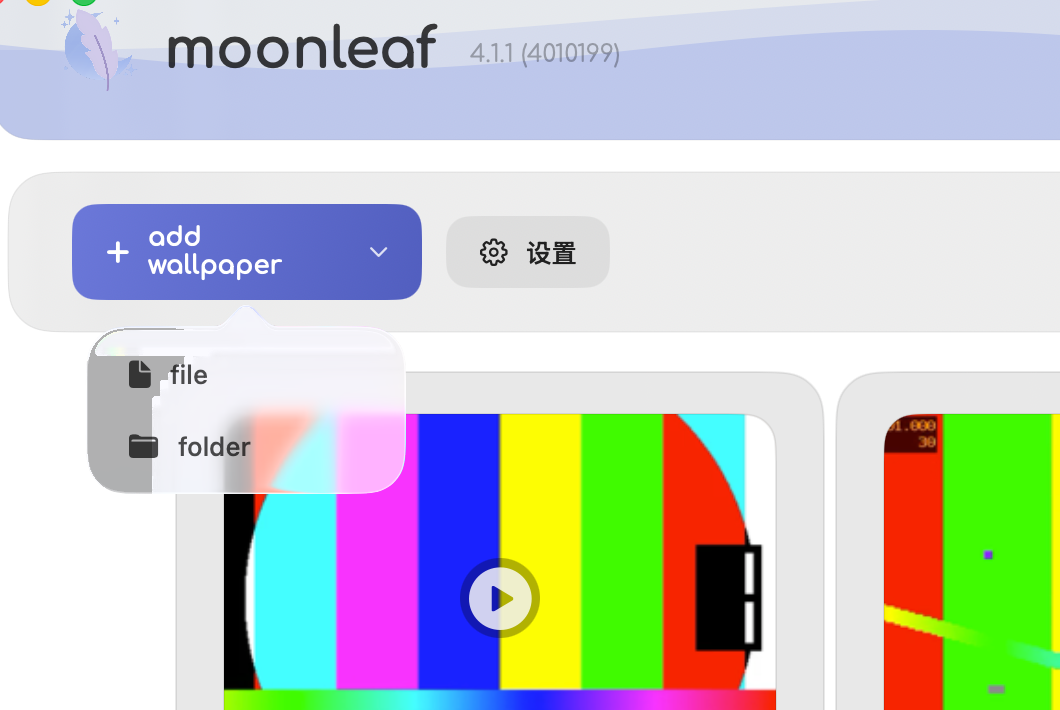
- Click + add wallpaper in the top toolbar and select file.
- Alternatively, drag and drop any
.giffile from Finder directly into the manager window.
3. Pick Your Display
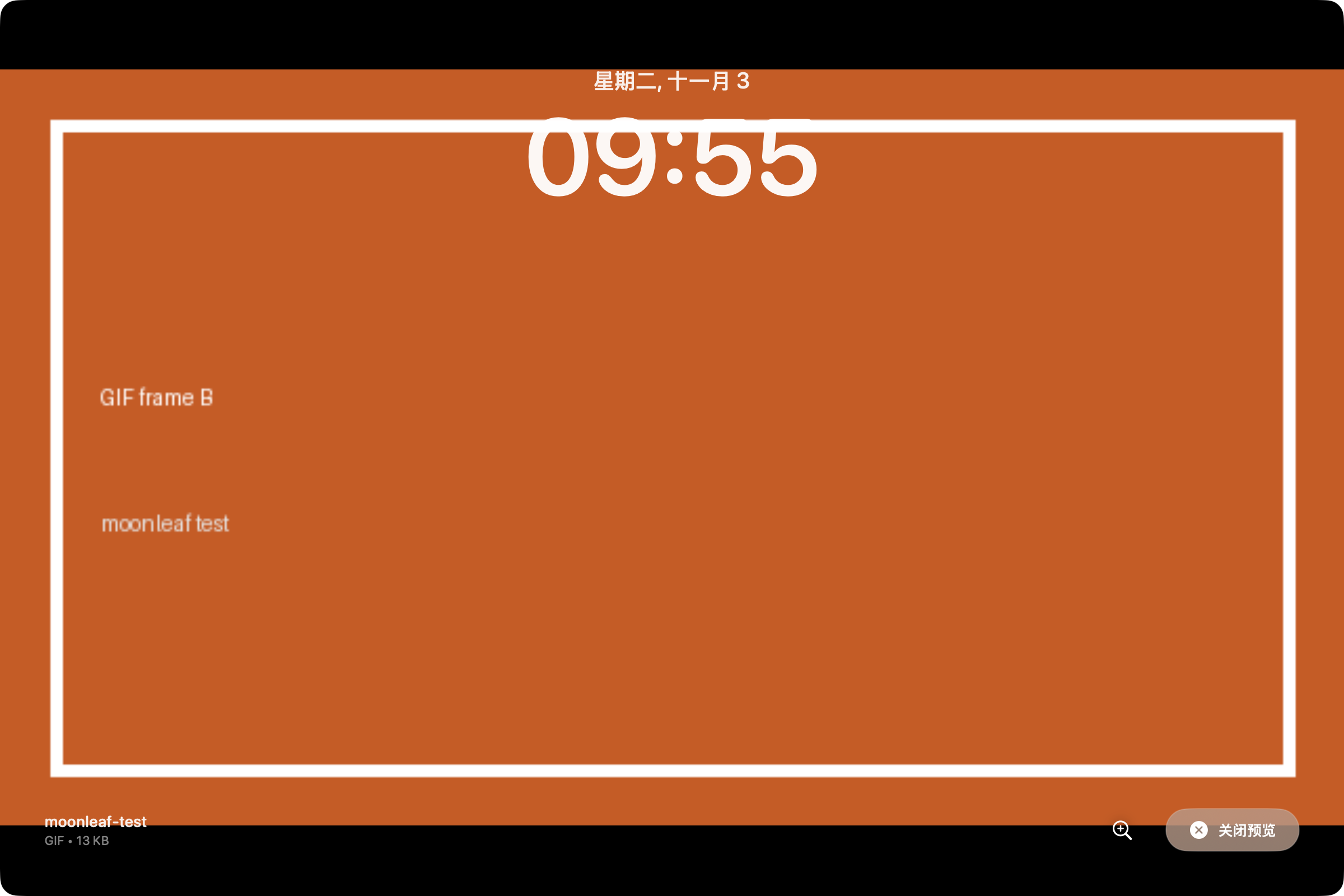
Click on any wallpaper card to launch the Quick Preview overlay. You can see the animation looping in real time with an integrated clock preview before applying it.
To set the wallpaper:
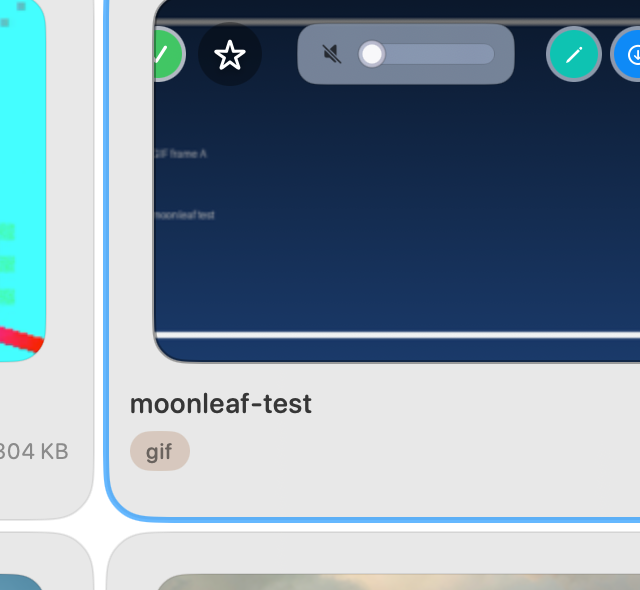
- Hover over the card and click the magic wand icon (Set Wallpaper).
- On multi-monitor setups, select All or pick a specific screen index (1 or 2).
- The GIF begins playing immediately across your desktop.
4. Control Playback from the Menu Bar
Moonleaf runs quietly in your menu bar. Click the menu icon for quick controls:
- Shuffle Now: Instantly switch to another wallpaper in your library.
- Volume Slider: Control audio levels when mixing GIF and video wallpapers.
- Automatically start wallpaper on login: Keep your wallpaper running after reboot.
- Unset Live Wallpaper: Revert back to your stock static macOS background with one click.
Different GIFs on Each Monitor or Each Desktop
Moonleaf supports multi-monitor setups natively. When you connect an external display, Moonleaf detects it and lets you assign different GIF or video wallpapers to each monitor independently, or synchronize the same wallpaper across all screens.
For virtual desktops (macOS Spaces), animated wallpapers run as an AppKit window overlay positioned directly above the root desktop level. As a result, your animated GIF remains seamlessly visible as you swipe between Spaces.
Battery Life and Performance
An animated wallpaper does more work than a still picture. Moonleaf plays GIF frames with Core Animation. In our test on an M1 Pro running macOS 26.7.1, CPU stayed under 1% while an animated GIF was playing. That is one machine and one file. We did not measure battery life on other Macs.
Prefer a Video? MP4 and MOV Work Too
If your wallpaper is already in video format, you don't need a separate app. Moonleaf plays MP4 and MOV videos natively alongside GIFs, leveraging hardware-accelerated AVFoundation decoding.
See our complete guide: How to Set a Video as Wallpaper on Mac (Free, MP4 & MOV) →
Where to Find GIF Wallpapers
- Pixel Art & Lo-Fi Loops: Communities like
r/PixelArtandr/Cinemagraphsprovide beautiful seamless loops. - Giphy & Independent Creators: Search for looping animations, and always support artists on Ko-fi or Patreon.
- Built-In Wallhaven Browser: Moonleaf includes integrated browsing for Wallhaven, offering thousands of curated high-resolution static wallpapers.
Other Ways People Do It (and the Trade-Offs)
Prices and requirements below are from each project's own page, as of Nov 2026. Check their site before you rely on them. A cell is — when that page did not state the fact. We could not verify a Mac app named WallFlow, so it is not listed.
| Method | Price | Plays GIF files? | macOS, as stated by them | Source |
|---|---|---|---|---|
| Moonleaf | Free (MIT) | Yes. No converting step. | Requires macOS 12 or later. Tested here on macOS 26 Tahoe. Universal binary. | This site. It does not change the lock screen. |
| Convert the GIF to a video, then use a video wallpaper app | — | No. The GIF itself is not the wallpaper file. | — | We did not verify a specific converter app. |
| Plash | Free | No. It shows a website, not a GIF file. | The current direct download (2.17.2) requires macOS 26 or later. Older builds are listed for earlier macOS. | sindresorhus.com/plash, as of Nov 2026 |
| Vivid Walls | Free download, 3-day trial, then $9.99 once. | Their site says it reads GIF files, plus video, web, and images. | macOS 14.0 or later, Apple Silicon. | vividwalls.app, as of Nov 2026 |
| Backdrop | Free to try with up to 3 watermarked wallpapers. Then $1.99/month, $14.99/year, or $29.99 lifetime (US; see their store). | — | macOS 15 Sequoia or later, per their product FAQ. | cindori.com/backdrop, as of Nov 2026 |
Troubleshooting
1. GIF is not moving
Confirm that Moonleaf is running in your menu bar. If closed, macOS displays the native static wallpaper. Click the menu icon and ensure your wallpaper is selected.
2. Gatekeeper prompt on first launch
Official releases are signed and notarized by Apple. If custom security policies flag the app, right-click moonleaf.app and choose Open, or run:
xattr -dr com.apple.quarantine /Applications/moonleaf.app3. Wallpaper resets after reboot
Click the Moonleaf menu bar icon and ensure Automatically start wallpaper on login is enabled.
Frequently Asked Questions
Can you set a GIF as your wallpaper on Mac without third-party apps?
No. macOS System Settings parses GIF files as static images and displays only the first frame. A dedicated wallpaper manager like Moonleaf is required to animate the loop.
Do I need to convert my GIF to an MP4 first?
No. Moonleaf decodes and plays raw .gif files natively. You do not need to convert them to video.
Does Moonleaf work on Intel Macs?
The v4.1.1 release is a Universal binary (Intel and Apple Silicon). It requires macOS 12 or later. We tested it on macOS 26 Tahoe.
Can I set different wallpapers on multiple monitors?
Yes. Moonleaf detects all connected displays and allows independent wallpaper assignment per monitor.
Does an animated GIF wallpaper drain laptop battery?
In our test on an M1 Pro running macOS 26.7.1, CPU stayed under 1% while an animated GIF was playing. That is one machine and one file, not a battery claim for every Mac.
Does the GIF wallpaper appear on the lock screen?
No. moonleaf animates the desktop only; it doesn't change the lock screen.